

- General Top
- SEMICONDUCTOR
- STORAGE
- COMPANY
-
My ToshibaSemicon
- Semiconductor Top
-
ApplicationsAutomotive
Body Electronics
xEV
In-Vehicle Infotainment
Advanced Driver-Assistance Systems (ADAS)
Chassis
IndustrialInfrastructure
BEMS/HEMS
Factory Automation
Commercial Equipment
Consumer/PersonalIoT Equipment
Healthcare
Wearable Device
Mobile
Computer Peripherals
-
ProductsAutomotive Devices
Discrete Semiconductor
Diodes
Transistors
Logic ICs
Analog Devices
- Automotive SmartMCD™ (Integreted SoC Conbining Microcontroller and Driver)
- Automotive Brushless Motor Driver ICs
- Automotive Brushed DC Motor Driver ICs
- Automotive Stepping Motor Driver ICs
- Automotive Driver ICs
- Automotive System Power Supplies ICs
- Automotive audio power amplifier ICs
- Automotive Network Communication
Digital Devices
Wireless Devices
※
 : Products list (parametric search)Power Semiconductors
SiC Power Devices
※
: Products list (parametric search)Isolators/Solid State RelaysPhotocouplers
Digital Isolators
Solid State Relays
Fiber Optic Transmitting Modules
※
: Products list (parametric search)MOSFETsIGBTs/IEGTsBipolar Transistors※
: Products list (parametric search)Diodes※
: Products list (parametric search)MicrocontrollersMotor Driver ICsIntelligent Power ICs※
: Products list (parametric search)Power Management ICsLinear ICs※
: Products list (parametric search)General Purpose Logic ICsLinear Image SensorsOther Product ICsOther Product ICs
※
: Products list (parametric search) -
Design & Development
-
Knowledge
- Where To Buy



- Part Number & Keyword Search
- Cross Reference Search
- Parametric Search
- Stock Check & Purchase
This webpage doesn't work with Internet Explorer. Please use the latest version of Google Chrome, Microsoft Edge, Mozilla Firefox or Safari.
require 3 characters or more. Search for multiple part numbers fromhere.
The information presented in this cross reference is based on TOSHIBA's selection criteria and should be treated as a suggestion only. Please carefully review the latest versions of all relevant information on the TOSHIBA products, including without limitation data sheets and validate all operating parameters of the TOSHIBA products to ensure that the suggested TOSHIBA products are truly compatible with your design and application.Please note that this cross reference is based on TOSHIBA's estimate of compatibility with other manufacturers' products, based on other manufacturers' published data, at the time the data was collected.TOSHIBA is not responsible for any incorrect or incomplete information. Information is subject to change at any time without notice.
require 3 characters or more.
How to Save Parametric Search Conditions?
The ability to save parametric search conditions is a convenient feature available to logged-in members.
Saved search conditions can be selected from a list and reused at any time, making product searches quicker and easier.
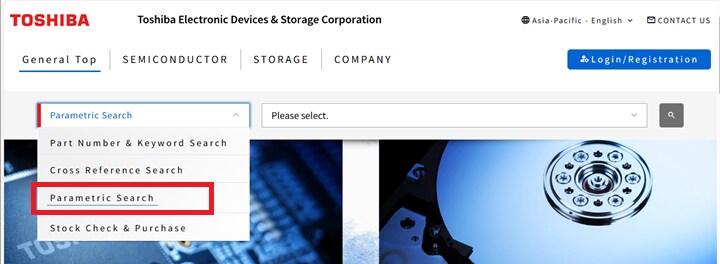
Select Parametric Search.
Use the search box or the parametric search option to navigate to the parametric search list page of the product category you want to search.
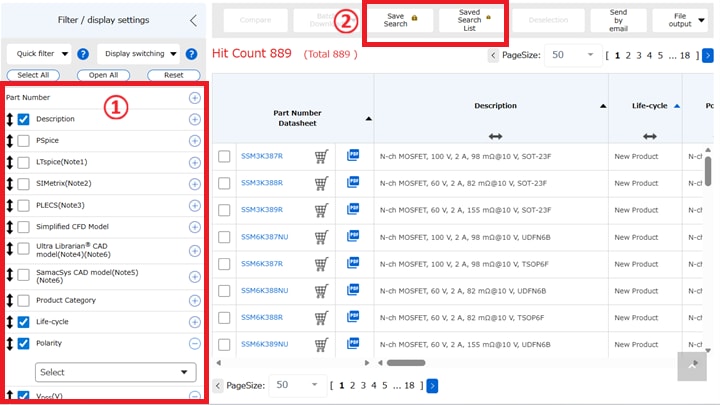
Setting and Saving Parametric Search Conditions
You can set search conditions from the left-side menu on the Parametric Search page.
After setting the conditions, click “Save Search” in the top menu to display the “Save Parametric Searches Conditions” page.
* Saving search conditions requires Web membership registration.
If you are not registered, click the ”Save Search” option with the lock icon, then proceed to the New Member Registration button to create a new account.
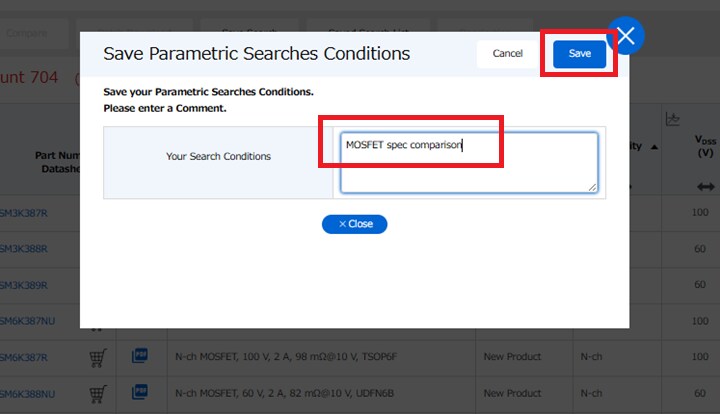
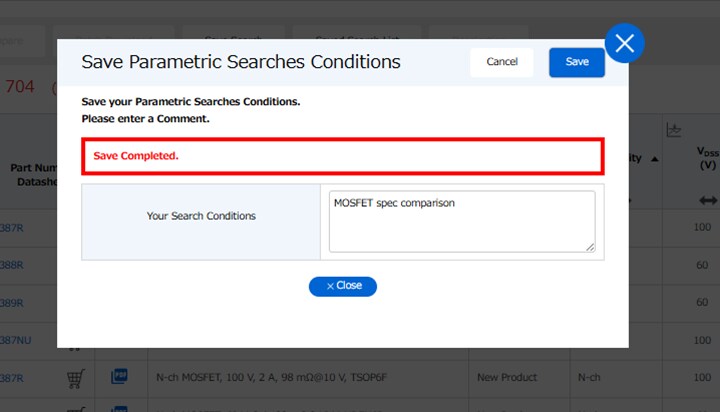
Save the search conditions
Enter a name in the Save Parametric Searches Conditions dialog and click Save. Confirm by clicking OK when prompted. When the completion message appears, the registration is complete.
Checking and Reusing Saved Parametric Search Conditions
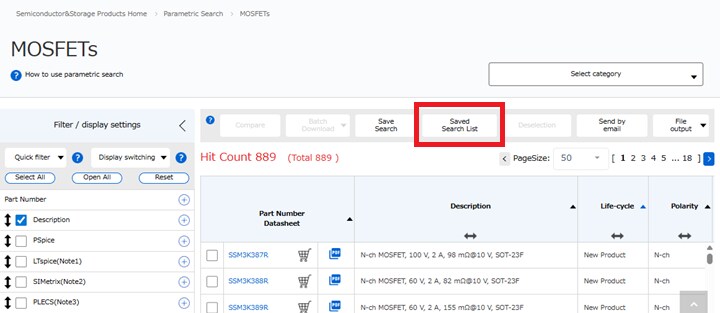
Click “Saved Search List” in the top menu to view registered parametric search conditions.
Saved conditions can also be checked from My Page.
* Web membership registration is required to save search conditions and view the saved list.
If you are not registered, click the "Saved Search List" with the lock icon, then proceed to the New Member Registration button to create a new account.
Click “Saved Search List” in the top menu to view registered parametric search conditions.
Saved conditions can also be checked from My Page.
* Web membership registration is required to save search conditions and view the saved list.
If you are not registered, click the "Saved Search List" with the lock icon, then proceed to the New Member Registration button to create a new account.
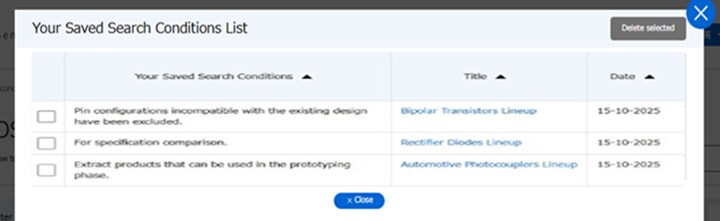
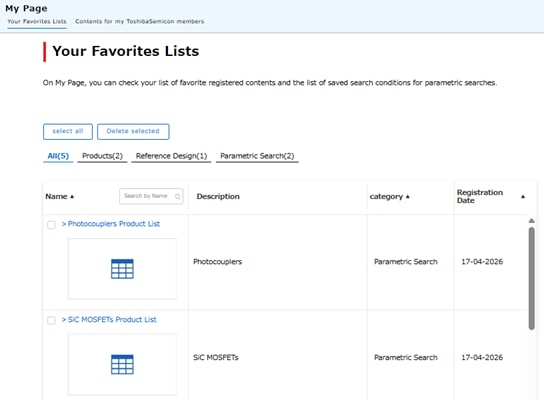
You can easily reuse saved search conditions by selecting them from the saved conditions list or the Favorites list on My Page.
This helps reduce repetitive input and streamlines the product search process.
You can easily reuse saved search conditions by selecting them from the saved conditions list or the Favorites list on My Page.
This helps reduce repetitive input and streamlines the product search process.